Details
This documentation explains how to view detailed information about a specific road segment using TES. Follow the steps below to access and analyze data for any road segment.
1. Access Road Segments
-
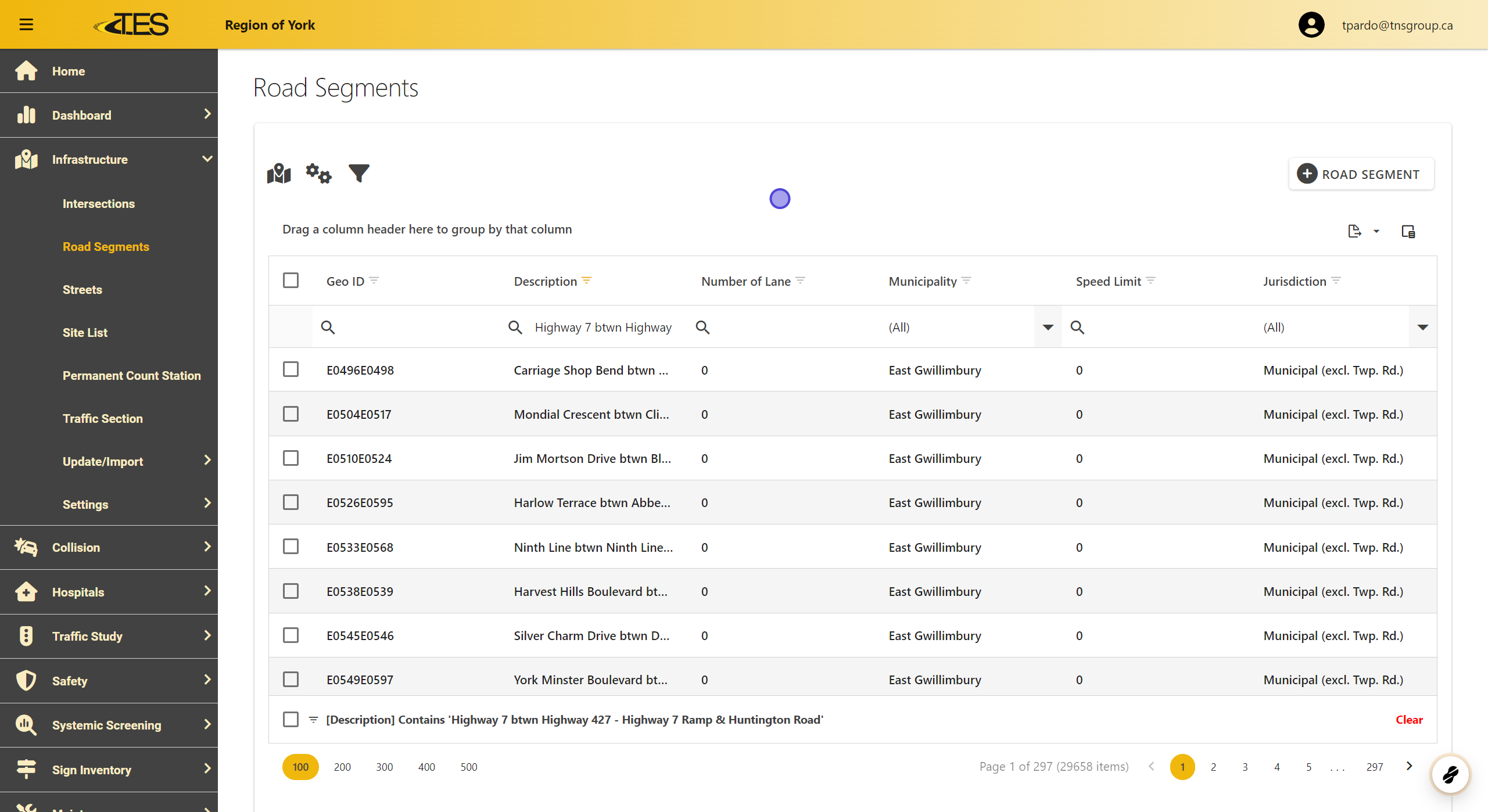
Navigate to the Road Segments module from the TES dashboard.
-
A list of all road segments will appear, displaying their Geo IDs, descriptions, number of lanes, and other attributes.
2. Select Road Segment
-
Use the search bar to locate a specific road segment by typing its Geo ID or Description .
-
Click on the desired road segment from the list to open its details.

3. Detail View
-
The Detail View for road segments is similar to the detail view of Intersections with almost identical tabs.
-
The Summary tab works almost the same with a map centered around the location and collision and AADT graphs shown if there were any collisions or calculated AADTs in the last five years.

4. More Graphs
In addition to collision and AADT data, the detail view includes:
-
Speed Statistics Graphs : If speed studies were conducted in the last five years, this graph will display:
-
Average Speed
-
85th Percentile Speed
-
Posted Speed
-
Compliance Rate
-

5. General Information
To view basic information about the road segment:
-
Click the General tab.
-
This section includes details like the road's name, municipality, jurisdiction, year of improvement, and Geo ID.

6. Location Tab
-
Click the Location tab to view a larger, interactive map of the road segment.
-
Use this map to explore the road's surrounding area in detail.

7. Details Tab
Click the Details tab to see additional information about the road, such as:
-
Intersections connected to the segment.
-
Street Names and Directions .
-
Surface Type (e.g., asphalt).

8. Cross Section Tab
Click the Cross Section tab to access cross-sectional information, including:
-
Number of lanes.
-
Median type and width.
-
Pavement and shoulder widths.
-
Bike lane details (if applicable).

9. Operation Tab
The Operation tab provides data on the road's operational attributes, such as:
-
Road class (e.g., arterial, local).
-
Speed limit.
-
Whether the road is one-way, divided, or has on-street parking.

10. Collisions Tab
-
The Collisions tab displays a grid of reported collisions for the selected road segment.
-
You can filter data by year, accident type, and other attributes to analyze specific trends
-
Refer to Intersection Details under slide 14 to create collision diagrams

11. Traffic Studies Tab
-
View historical traffic studies conducted on the road in the Traffic Studies tab.
-
This section lists study details such as type, category, status, and dates.

12. Signs and Support Tab
-
Access the Signs and Supports tabs to see related data grids for road signs and infrastructure supports.
-
If no data is available, the grid will indicate this.
